1. What Is Access to Exam Scripts?
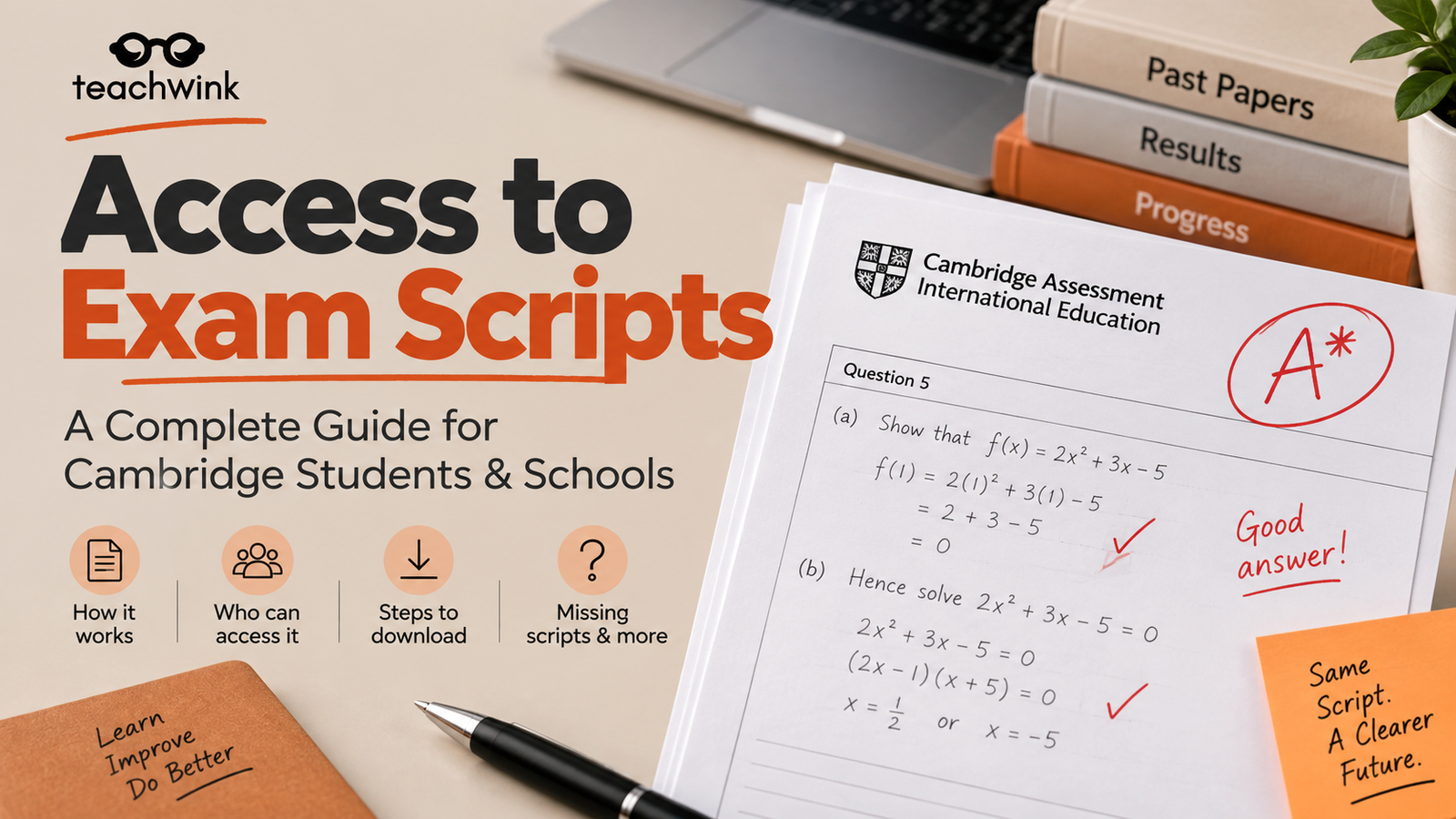
Seeing marked exam work is very helpful. It shows how students earned their marks. This helps everyone understand the final results. Transparency makes the grading process very clear. Teachers can learn from these records. They can see where students struggled. Access to Exam Scripts lets you download marked candidate papers. This happens after we release the results. This service is for exams officers and school staff. Specific school staff manage this digital process.
2. Who Can Download Cambridge Exam Scripts?
Schools use dedicated people and digital tools to manage these sensitive records. Keeping exam scripts secure is our highest priority. We must protect the private work of every student. Only the right people should ever see these documents. This ensures the integrity of the whole school system.
The Exams Officer is the main contact at your school. They handle all official exam tasks. This person can give “authorized colleagues” access to the system. These colleagues usually have specific subject responsibilities. The Exams Officer can also remove access to keep the system safe.
My Cambridge is the single website you need. It is a “single sign-on” service. This means you only need one email and password for many different services. This makes the system simple and very secure for busy staff. You can use this site on Windows or Mac computers. It works with many modern browsers. These include Chrome, Safari, and Microsoft Edge (on Windows 10). It also supports Firefox and Internet Explorer 11 or later. Once staff log in, they follow a standard process to find work.
3. How to Download a Cambridge Exam Script
Following these steps keeps student data safe. This is how digital scripts move from examiners to your school. Using the correct path ensures that student privacy is always respected.
- Check browser settings to make sure My Cambridge is a “trusted site.”
- Log in to the My Cambridge website with your official details.
- Click on the “Access to Scripts” tile on the main dashboard.
- Choose your school from the list (called a “Centre” in the system).
- Select the correct exam series and click “Open series.”
- Search for the student by using their name or candidate number.
- Confirm you have student permission to download the file.
- If you lack permission, you must “anonymize” the script.
- Anonymizing means you remove the student’s name from the document.
- This is required if using the script for teaching and learning purposes.
- Click the download button to save the file to your computer.
Note: You can use “Bulk Download” to save up to 50 scripts at one time.
4. Why Your Exam Script Might Be Missing
Most exam work is ready once results are out. However, some papers might not appear in your list. This happens for very specific technical or administrative reasons.
- The paper arrived at the office too late to be scanned.
- The script was physically damaged and became unscannable.
- The candidate has marks that were adjusted very recently.
- The mark was removed due to a malpractice investigation.
- The results currently have a “Pending” or “No Result” status.
- These scripts will appear if the status changes five working days before closing.
5. Getting More Help with Access to Exam Scripts
Understanding the marks on a script is easier when you know the colors. Examiners use red or green for the first stage of marking. Senior examiners use brown or maroon for a re-mark. Blue marks mean a high-level grade review happened. This helps you see the different stages of the marking process.
Asking for help is vital when handling these official records. You want to ensure every student has the best support possible. If any part of this process is confusing, please reach out. Email the support team at info@cambridgeinternational.org for more guidance. Please provide the qualification and candidate details so they can investigate. They are happy to help you find the records you need. Keeping the process clear helps every student succeed in their future goals.
Preparing for a retake? Read our Cambridge retake guide to understand the rules before deciding your next step.